Introduction
Windows 11 has introduced a sleek, new interface that enhances productivity with its centered Start Menu and innovative features like Snap Layouts. But for many, the desktop remains an essential focal point for organizing tasks and applications. Knowing how to seamlessly and quickly access it can greatly enhance your work efficiency. This article will walk you through several methods to navigate to the desktop, explore customization options, and address common issues, ensuring you have a smooth experience with Windows 11.
Understanding the Windows 11 Interface
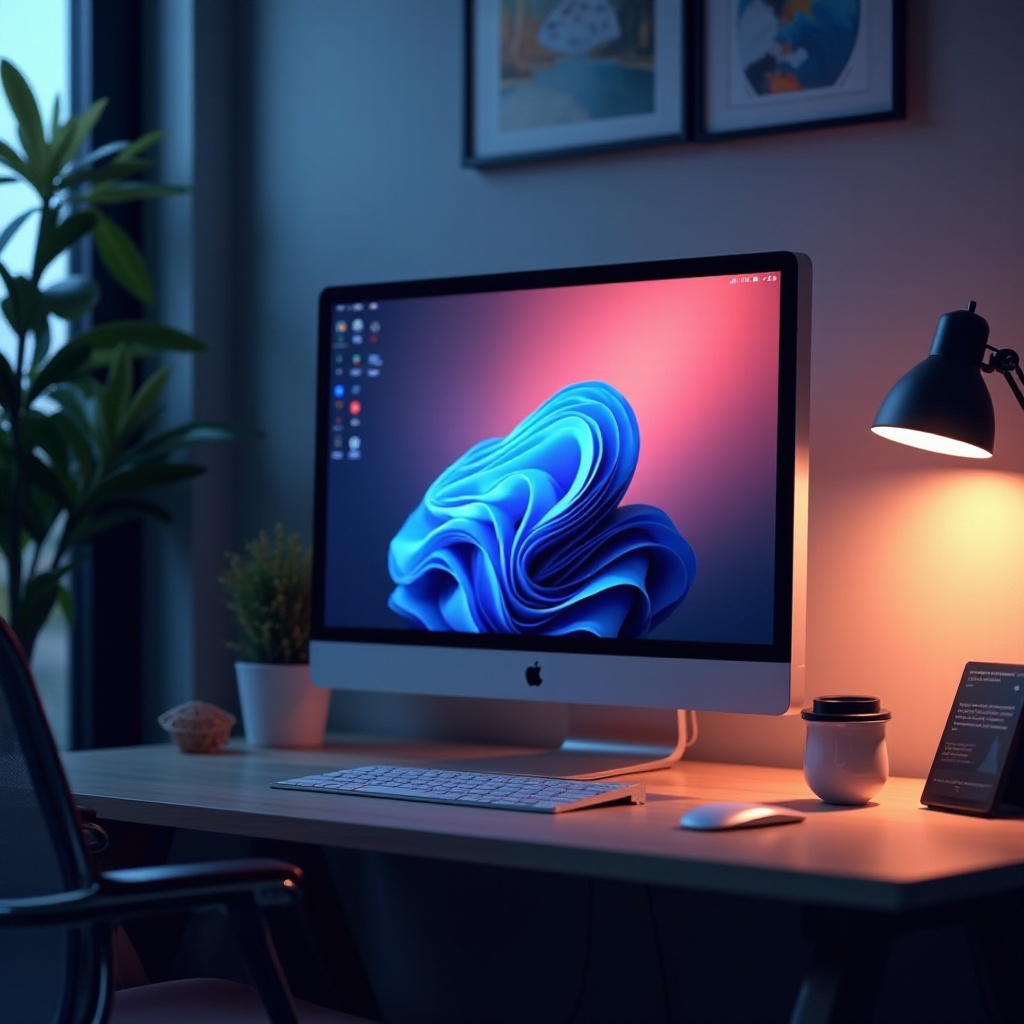
The transition to Windows 11 brings a fresh look with significant updates. The taskbar is centered, the Start Menu is simplified, and there’s a greater emphasis on multitasking features. These changes are designed to make your workflow more intuitive, but they may require an adjustment period for seasoned Windows users. The desktop, however, remains your control center for managing applications and files. To navigate this interface efficiently, you need to familiarize yourself with the various access points to the desktop in Windows 11.
Methods to Quickly Access the Desktop on Windows 11
Understanding the quickest ways to access the desktop will enhance your interaction with Windows 11. Let’s explore these methods:
Using the Taskbar
The taskbar in Windows 11 features a ‘Show Desktop’ button at the far right edge. Here’s how you can use it:
1. Move your cursor to the end of the taskbar.
2. Click the small vertical strip or space, prompting all open windows to minimize and reveal the desktop.
This efficient feature is available by default and requires no setup, providing immediate access.
Using Keyboard Shortcuts
Keyboard shortcuts offer a swift way to manage open windows and access the desktop:
1. Press ‘Windows + D’ to toggle back and forth between the desktop and your current task.
2. Press ‘Windows + M’ to minimize all windows directly to the desktop.
These shortcuts are easy to memorize and can save you a lot of time as you navigate through tasks.
Utilizing the Start Menu
The redesigned Start Menu is a central hub for accessing programs and settings:
1. Open the Start Menu via the Windows icon or by pressing the Windows key.
2. Type ‘desktop’ to find options related to desktop settings.
3. Pin ‘Desktop Settings’ or any frequently used items for easy access later.
Customizing the Start Menu can make your access routine more intuitive and reflect your habits.
Using Gestures for Touch Devices
For users with touch-enabled devices, gestures can make navigation even more seamless:
1. Swipe up with three fingers to enter Task View.
2. Swipe down with three fingers to reveal the desktop quickly.
These gestures leverage the capabilities of modern touch devices, ensuring a fluid transition between tasks and windows.
Customizing Your Desktop Experience
Once you’ve mastered reaching the desktop, it’s time to make it your own. Personalizing your desktop can enhance both its functionality and your overall enjoyment when using Windows 11. Here are some customization options:
1. Right-click the desktop and select ‘Personalize’ to enter the customization settings.
2. Choose from Windows 11’s default wallpapers or upload your own image for a personal touch.
3. Explore themes that adjust not just your background, but also color schemes, sounds, and mouse pointers to match your aesthetic.
Such personalization not only boosts productivity by tailoring the interface to your workflow but also enhances the visual appeal of your workspace.
Troubleshooting Common Issues
Should you experience any difficulties accessing the desktop, these troubleshooting tips might help:
1. Update Windows 11: Always ensure your system is up to date by checking under Settings > Windows Update.
2. Restart the Computer: A simple restart can often resolve many of the issues you encounter.
3. Check Desktop Settings: If desktop icons are missing, right-click the desktop, select ‘View,’ and ensure ‘Show desktop icons’ is checked.
Addressing these straightforward issues can resolve most challenges, ensuring a hassle-free interaction with your workspace.
Conclusion
Familiarity with the various ways to access the desktop in Windows 11 can significantly improve your efficiency and user experience. Whether you’re using the taskbar button, keyboard shortcuts, or touch gestures, these methods provide quick access to your primary workspace. Personalizing your desktop environment and understanding the basic troubleshooting steps further ensure a smooth, enjoyable experience as you navigate the latest Windows operating system.
Frequently Asked Questions
Can I Switch Off Snap Layouts in Windows 11?
Yes, navigate to Settings > System > Multitasking and toggle off Snap Layouts.
How Do I Restore Missing Desktop Icons?
Right-click on the desktop, select ‘View,’ then ensure ‘Show desktop icons’ is checked.
Is There a Shortcut to Access Virtual Desktops?
Yes, use ‘Windows + Tab’ to open Task View and create or switch between virtual desktops.