Introduction
A dim laptop screen can hinder your productivity and viewing enjoyment. Whether you’re immersed in a movie, editing photos, or simply reading a document, the right screen brightness plays a crucial role in your experience. In this guide, we’ll delve into both manual settings and software tools to effectively increase your laptop screen brightness. Additionally, we’ll tackle common issues that may dim your screen and the external factors that can influence brightness. Join us as we explore comprehensive strategies for achieving an optimal display.

Understanding Laptop Screen Brightness
Optimizing your laptop screen brightness involves more than just increasing the luminosity; it also concerns screen technology and overall quality. Brightness levels can impact visual presentation, battery life, and eye comfort.
Types of Laptop Screens
Laptops house various screen technologies like LCD, LED, and OLED, each with unique brightness levels and color quality. An LCD screen, for instance, might not shine as brightly as an OLED display. Recognizing your screen type can guide your brightness-adjustment approach and optimize display settings.
How Brightness Affects Display
Brightness affects how content is seen and can significantly influence your laptop’s battery usage. A higher brightness is ideal for well-lit environments but could quickly drain your battery. Conversely, a lower brightness setting conserves energy but poses challenges in darker settings. It is essential to strike a balance to enhance visual comfort and extend battery efficiency.

Manual Methods for Adjusting Brightness
Several practical methods exist for manually adjusting your laptop’s brightness using either hardware controls or system settings.
Using Keyboard Shortcuts
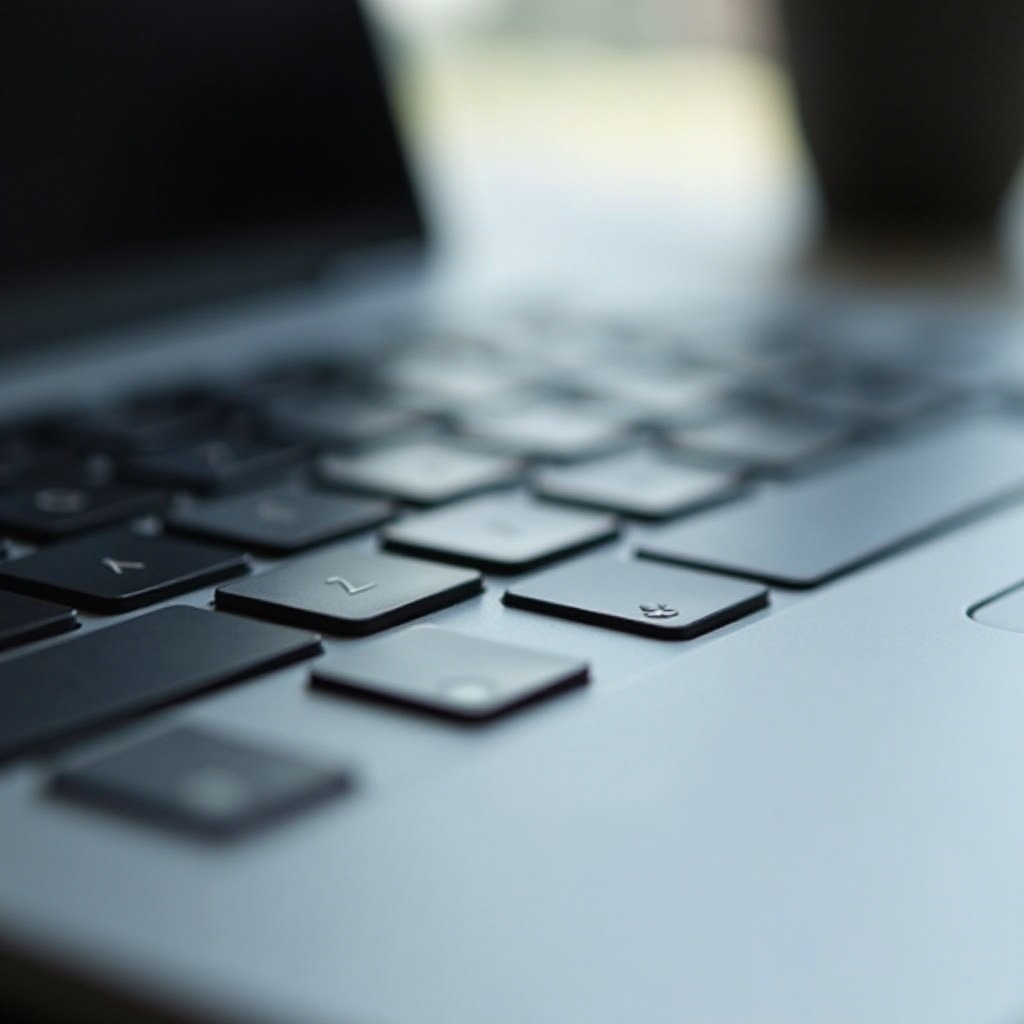
Keyboard shortcuts offer a rapid way to modify screen brightness. Look for the function keys marked with sun icons:
- Locate the keys on your keyboard, often requiring pressing the
Fnkey together with brightness keys to adjust the level.
Adjusting Brightness on Windows
Windows provides a user-friendly interface for brightness tweaks:
- Access the brightness slider by clicking the battery icon in your system tray.
- Alternatively, navigate to ‘Settings’ > ‘System’ > ‘Display’ to find additional brightness controls.
Adjusting Brightness on macOS
Mac users have simple access to brightness settings:
- Tap the ‘Apple’ menu and select ‘System Preferences.
- Choose ‘Displays’ and adjust using the brightness slider. The F1 and F2 keys also allow direct adjustments.
Enhancing Brightness Using Software
There are software methods which provide more precise control over your brightness settings and can adapt based on personal preferences.
Windows Display Settings
Windows presents advanced settings for further customization:
- The ‘Night Light’ feature diminishes blue light emission, adjusting brightness in alignment with your needs.
macOS Brightness Tools
macOS integrates tools for optimizing your screen brightness:
- Use ‘Night Shift’ to warm up display colors after dark, improving brightness perception and comfort in low-light situations.
Third-party Brightness Applications
Several third-party apps allow personalized brightness settings, offering features like automatic adjustments based on ambient light conditions. These apps complement built-in display controls, enhancing flexibility.

External Factors Influencing Brightness
Your viewing area and laptop configuration can affect screen brightness, requiring adjustments to maximize clarity and comfort.
Room Lighting Adjustments
Room lighting can create glare, making screens appear dim. Utilizing softer ambient lighting can augment screen clarity and brightness.
Importance of Screen Position
Adjusting your screen’s positioning minimizes reflections, improving brightness perception. Consider ergonomic changes for smoother viewing experiences.
Troubleshooting Common Brightness Issues
At times, you may confront challenges with brightness controls. Here are solutions to common issues.
Updating Display Drivers
Obsolete display drivers might cause faulty brightness settings. Update them through the following steps:
- In Windows, access ‘Device Manager.
- Expand ‘Display adapters’ and right-click your driver.
- Choose ‘Update driver’ to initiate upgrades.
Power Settings Check
Laptop power-saving modes might restrict brightness levels. Ensure the settings allow for higher brightness:
- Visit ‘Control Panel’ > ‘Power Options’ and modify settings for preferred brightness.
Performing a Hardware Diagnostic
If software adjustments don’t work, consider running hardware diagnostics to uncover any underlying issues. Consult your laptop support instructions for guidance on conducting a diagnostic examination.
Conclusion
Balancing manual adjustments with awareness of environmental influences is critical for attaining your laptop’s optimal brightness levels. Whether through software enhancements or hardware shortcuts, these strategies enlighten your viewing experience while preserving energy. Should difficulties arise, systematic troubleshooting will help resolve brightness hindrances efficiently.
Frequently Asked Questions
How can I adjust laptop brightness without keys?
Navigate to system display settings on Windows or macOS and use the available sliders for brightness adjustments without using keys.
Why is my laptop screen so dim even on full brightness?
This might be due to outdated drivers, incorrect power settings, or hardware issues. Updating drivers or adjusting power settings may resolve it.
Can software permanently fix brightness issues?
Software can enhance and customize brightness temporarily, but permanent solutions may require driver updates or hardware repairs.