
Introduction
Customizing the color settings on your Android phone is not just about aesthetics; it’s about creating a space that reflects who you are. Whether it’s changing themes or tweaking app icon hues, the flexibility Android offers allows you to make your device an extension of your personality. We’ll guide you through the entire process to ensure your phone looks exactly how you want it. From simple settings to advanced tweaks, here’s how you can change colors on your Android phone effectively.
Navigating Android’s Color Customization Options
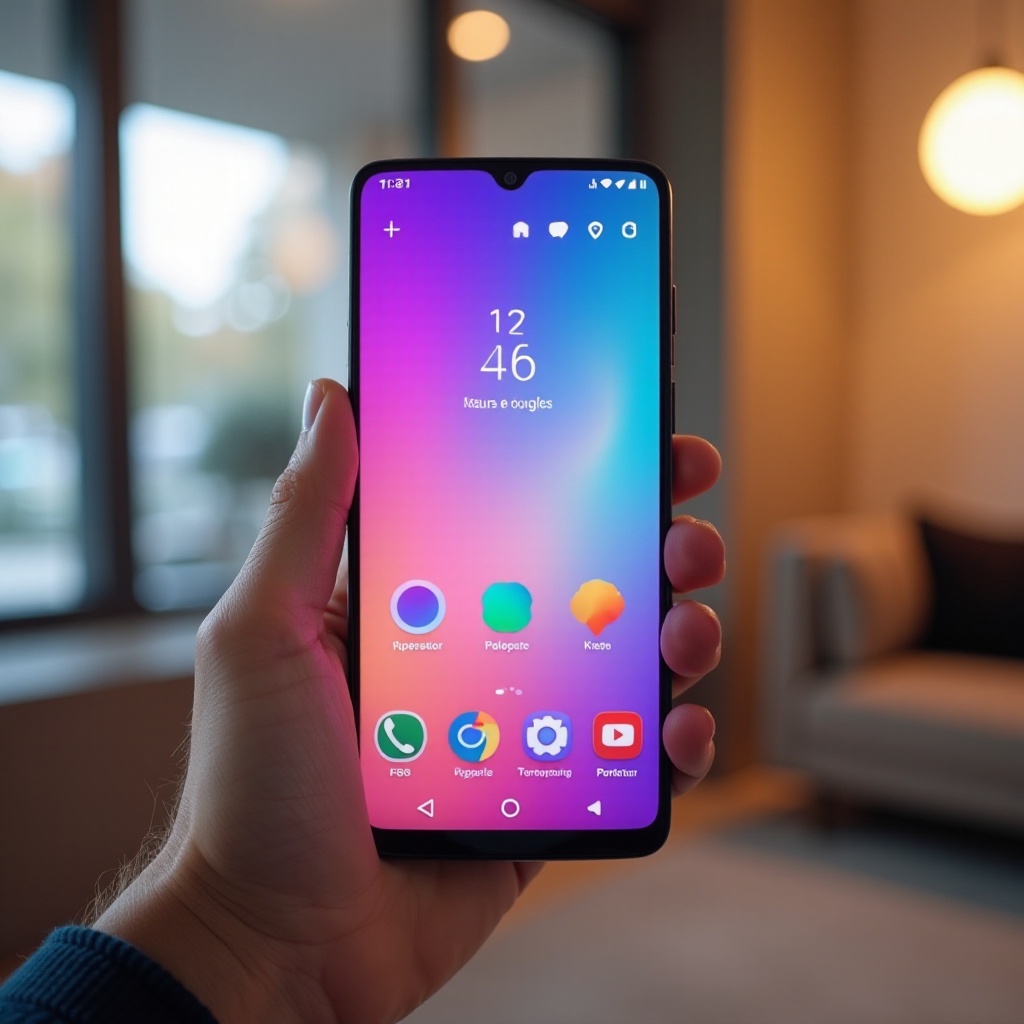
With Android’s varied customization features, adjusting your phone’s appearance becomes both intuitive and rewarding. Begin with exploring your system settings, which permit changes in themes, fonts, and even accent colors. This not only allows for a visual upgrade but also tailors the device for better accessibility. As you navigate these options, you’ll find endless ways to ensure your phone mirrors your personal style. Moreover, customizing your phone enhances its functionality, making it a more efficient tool for your daily tasks.
Utilizing Built-In Display Settings
Android devices are equipped with built-in display settings to alter the color scheme, enhancing both usability and visual comfort.
- Access Settings.
- Navigate to Display.
- Select Advanced or a Dark Theme.
By adjusting brightness or enabling night mode, you can reduce eye strain, which is crucial for those long screen times. Testing these adjustments helps you identify a configuration that enhances your viewing experience while being gentle on your eyes.
Personalizing with System-Wide Themes
System-wide themes transform your Android interface profoundly, offering modifications from app backgrounds to notification tints.
- Google’s Material You: Responsive to your wallpaper, altering colors for cohesion.
- Manufacturer-Specific Themes: Explore Samsung or Xiaomi theme stores for varied offerings.
Applying these themes through the settings or dedicated apps underscores a personal touch, crucial for device individuality. By customizing themes, your phone transitions from standard settings to a truly personal space, enhancing visual appeal and user experience.
Changing App and Icon Colors
Using Built-In App Settings
To alter app and icon colors:
- Open the app.
- Go to Settings.
- Look for Appearance or Theme Settings.
- Choose your desired color scheme.
Exploring Third-Party Apps
Third-party options open up further customization horizons:
- Nova Launcher and Microsoft Launcher for expansive customization.
- Icon Pack Studio offers extensive icon modification abilities.
These tools offer flexibility, giving you the power to customize nearly every visual aspect of your phone. After personalizing icons, your journey towards complete aesthetic coherence continues with wallpapers that frame your interface.
Enhancing Visual Appeal with Wallpapers
Wallpapers form the crucial backdrop of your interface, harmonizing with your customized elements.
- Choose backgrounds that accentuate your theme and icon colors.
- Utilize live wallpapers for animated and dynamic visuals.
To change wallpapers, hold down on the home screen’s blank area, then select Wallpapers. This integration of wallpapers with your color scheme results in a harmonious visual experience, tying your customization efforts together beautifully.
Advanced Customization Tips for Android Users
For those wanting to delve deeper into customization, consider these advanced methods:
-
Developer Options: Unlock hidden settings by activating Developer Options.
-
Rooting: Gain ultimate control by rooting your device, but be cautious of risks such as potentially voiding warranties. Opt for safer rooting solutions like Magisk.
-
Tasker App: Automate theme changes based on specific conditions, such as time of day.
These advanced techniques offer unparalleled aesthetic control, providing the knowledge and tools needed to master your device’s look while understanding potential risks and rewards.
Troubleshooting Common Color Issues
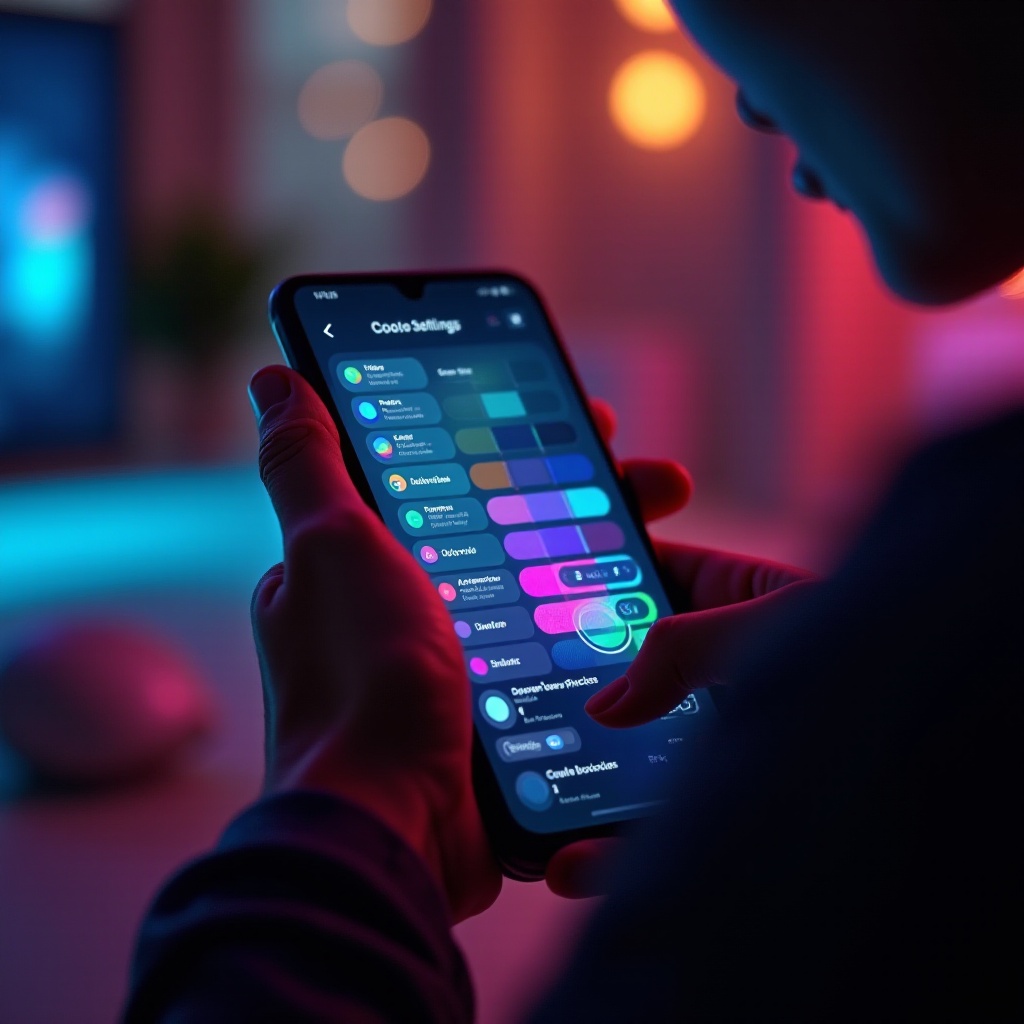
When customization doesn’t go as planned, tackle color application issues effectively by:
- Restarting your device to resolve minor glitches.
- Checking app compatibility, particularly with third-party customizations.
- Reapplying settings to ensure they’ve been effectively saved and applied.
Stay updated and seek community advice through forums to seamlessly tackle any obstacles, ensuring a glitch-free personalized experience.
Conclusion
Through exploring Android’s robust customization options, change colors on your Android device to suit your unique taste. From simple settings adjustments to embracing advanced options, the journey to a personalized phone is filled with creative possibilities. Whether opting for subtle visual changes or diving into deep customization, you can make your Android device a reflection of your personal style and functional preferences.
Frequently Asked Questions
How do I change the theme color on my Android phone?
To change the theme color, go to your phone’s **Settings** > **Display** > **Theme** or explore the **Themes app** if your phone supports it.
Can I use third-party apps to change colors on my Android?
Yes, third-party apps like **Nova Launcher** allow extensive customization of themes and icons.
What should I do if color changes are not applying?
Try restarting your device, checking app compatibility, and reapplying your settings to resolve any issues with colors not changing.